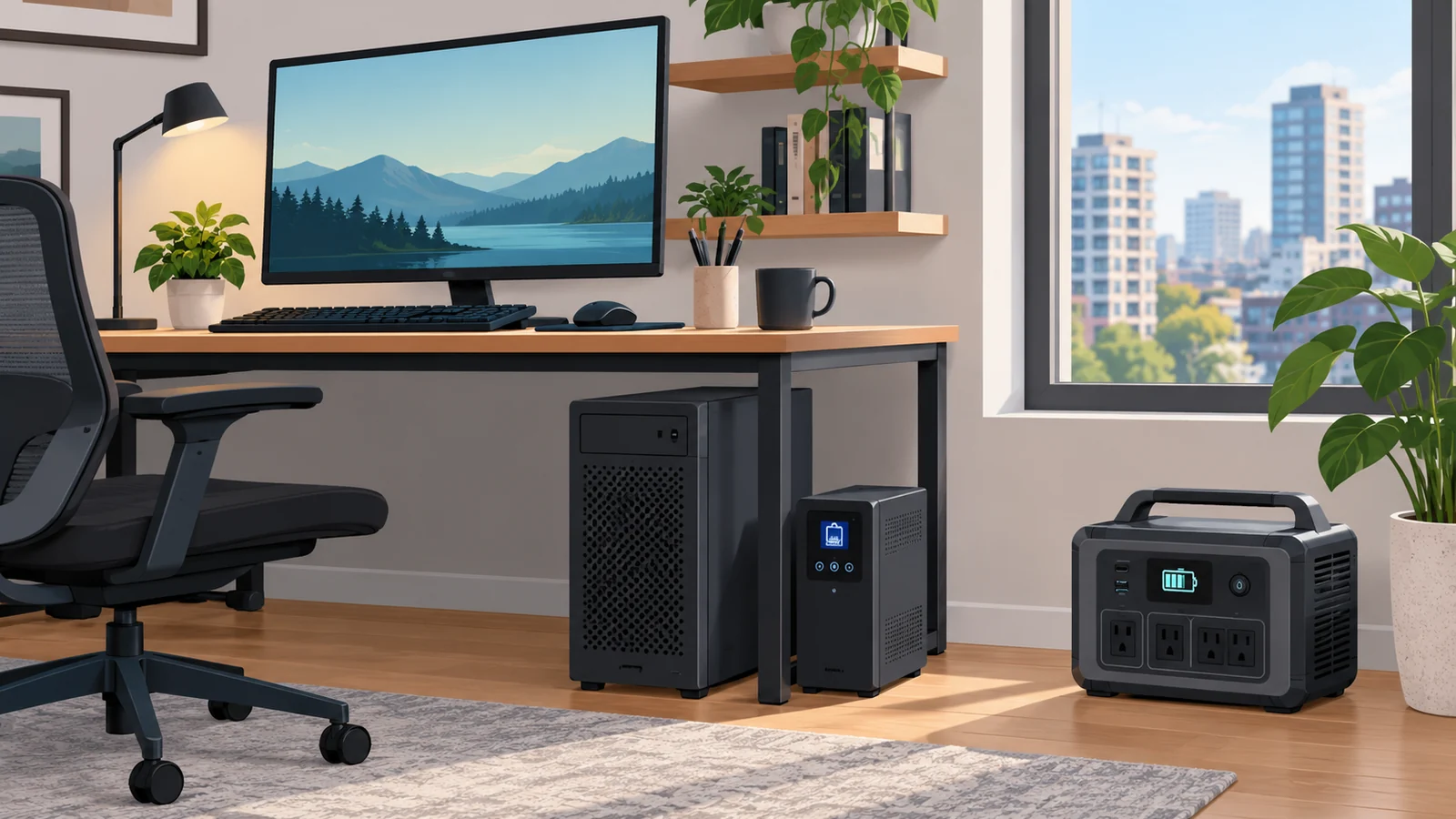
When utility power fails without warning, a home computer setup faces two distinct operational challenges: immediate data loss from an unexpected system crash, and extended productivity loss during a prolonged blackout. Selecting the appropriate battery backup solution depends on your specific workstation hardware—whether you rely on a laptop or a desktop PC—and whether your immediate priority is saving active files before shutting down or working through a multi-hour power outage.
The short version — choose your path first:
- Laptop: Use its internal battery for immediate protection, then a compatible USB-C power bank if you need more time.
- Desktop, brief interruption: A suitable UPS buys time to save work and shut down safely.
- Desktop, longer outage: Plan for a properly sized portable power station. If switchover compatibility is uncertain, shut the PC down while the UPS still has power, reconnect it to the station while it is off, and restart.
You can skim the setup recommendations and safety checklist first. The detailed battery-runtime calculations are optional.
For a desktop computer, your primary baseline defense is a dedicated Line-Interactive Uninterruptible Power Supply (UPS) with Pure Sine Wave output. A line-interactive UPS actively regulates minor grid voltage fluctuations (sags and swells) without draining its battery and provides rapid power switchover (typically 2 to 8 milliseconds) when grid power fails completely. This bridges short interruption gaps so your computer tower, external monitor, and local network equipment remain powered through brief utility sags or switchovers. However, standard consumer desktop UPS units are engineered primarily for short-term emergency bridging—providing 5 to 20 minutes of runtime depending on the connected electrical load and battery capacity—to enable active file saving and an orderly operating system shutdown Schneider Electric UPS Buying Guide.
If your goal is to continue working on a desktop PC through a multi-hour blackout, a high-capacity portable power station provides significantly larger battery storage. However, power stations differ from traditional UPS hardware in their transfer speed and electrical design. Many portable power stations operate in an Emergency Power Supply (EPS) mode with a 10 to 20 millisecond switchover delay. Because the internal PSU hold-up time varies with design, loading, and the applicable specification, a 20 ms EPS transfer delay is not guaranteed to prevent sensitive desktop power supplies from resetting EcoFlow RIVER 3 Manual.
To achieve extended desktop operation without relying on millisecond transfer timing, remote workers can choose between three distinct operational configurations:
- Pre-Connected Automatic Switchover: The workstation remains plugged into a battery backup that explicitly supports sub-10 ms transfer speeds (such as a line-interactive UPS or a specialized sub-10 ms UPS power station like the EcoFlow RIVER 3 Plus) EcoFlow RIVER 3 Plus Manual. The transfer-time rating does not establish backup duration: the base RIVER 3 Plus has only 286 Wh of nominal storage, so multi-hour workstation use needs a separately adequate energy budget EcoFlow product specifications.
- Manual Changeover (Recommended for Multi-Hour Blackouts): The desktop PC is powered by a Line-Interactive UPS during the initial blackout. The user saves active work and initiates an orderly OS shutdown as soon as practicable, before the UPS exhausts its battery; the available time depends on the actual load and the particular UPS, so never assume a fixed 10-to-15-minute window. Once the PC is safely powered off, the user manually connects the desktop tower and display to a high-capacity portable power station, turns the station on, and reboots the system to work for hours without transfer timing risks. (Note: Manual changeover requires powering off the PC before unplugging and restarting the system after reconnecting).
- Direct Power-Station Operation: At the start of a planned session, connect the desktop PC and display to the AC receptacles of a compatible, appropriately rated portable power station. Do not connect an ordinary desktop PC power supply directly to an unregulated DC battery bank.
For a laptop, the backup power design is fundamentally simpler and more energy-efficient. A laptop’s internal lithium-ion battery already serves as an integrated, zero-transfer-time uninterruptible power supply. To extend your work time during a prolonged outage, you do not need a heavy AC UPS; a high-capacity USB-C Power Delivery (PD) power bank or a compact portable power station supplying DC power directly to the laptop charger provides extended runtime with minimal energy conversion losses US DOE Computer Energy Management Guide.
1. Inventory Your Workstation Power Dependencies
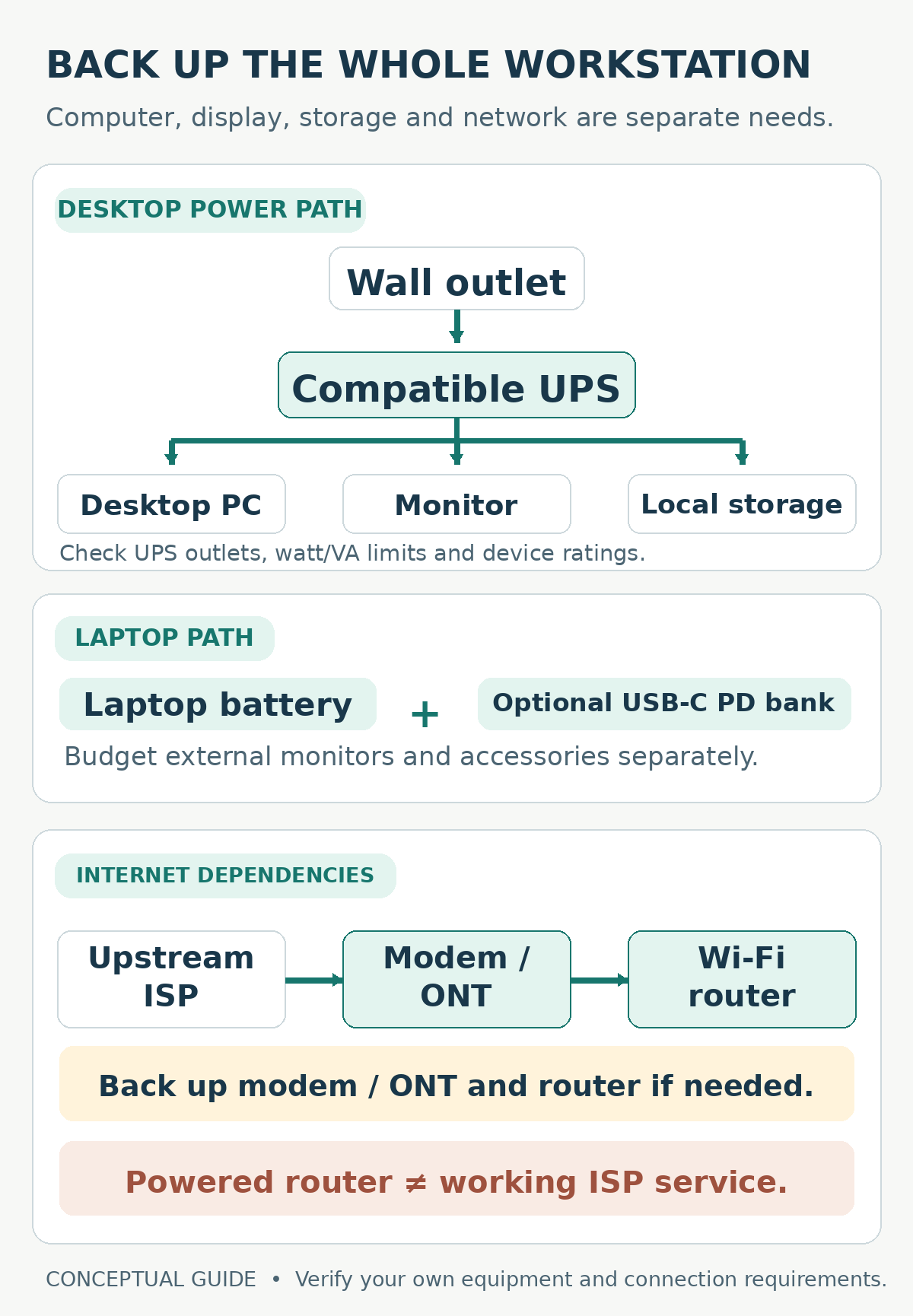
Designing a reliable home-office power backup plan requires mapping the complete digital workflow chain. Supplying power to a desktop computer tower provides no utility if your external display is dark or your internet router loses power.
- Utility Grid Power → Line-Interactive UPS (Pure Sine Wave) → Desktop PC Tower (Active PFC PSU), Primary External Display, and NAS / Critical External Drives.
- Utility Grid Power → Dedicated DC Backup / Small UPS (Optional) → Fiber ONT / Broadband Modem & Wi-Fi Router.
When auditing your home office, inventory your hardware in three distinct operational tiers:
- Primary Computing Host: Desktop tower PC, laptop charger, or USB-C docking station.
- Visual & Input Interfaces: External LCD/OLED monitors, powered USB hubs, and active audio interfaces.
- Connectivity Infrastructure: Fiber Optical Network Terminal (ONT), cable modem, Wi-Fi router, and Network Attached Storage (NAS).
Upstream Network Infrastructure Caveat: Maintaining power to your local Wi-Fi router and modem keeps your home local area network (LAN) active, but it does not guarantee an active internet connection. Broadband internet service relies on neighborhood distribution nodes, active cabinet amplifiers, and fiber optical line terminals operated by your Internet Service Provider (ISP). If your ISP’s local cabinet loses grid power or exhausts its cabinet backup batteries during a widespread outage, your router will remain powered, but your internet link will drop. For detailed guidance on auditing modem draw and ISP cabinet continuity, see our Home Internet Backup Guide (A02).
2. Measure Actual Watts, Not Charger Nameplates
Accurately sizing a battery backup system requires measuring your workstation’s actual electrical draw rather than reading maximum nameplate ratings. Electrical nameplates state peak safety limits required for electrical code compliance—not average operational consumption APC UPS Selector.
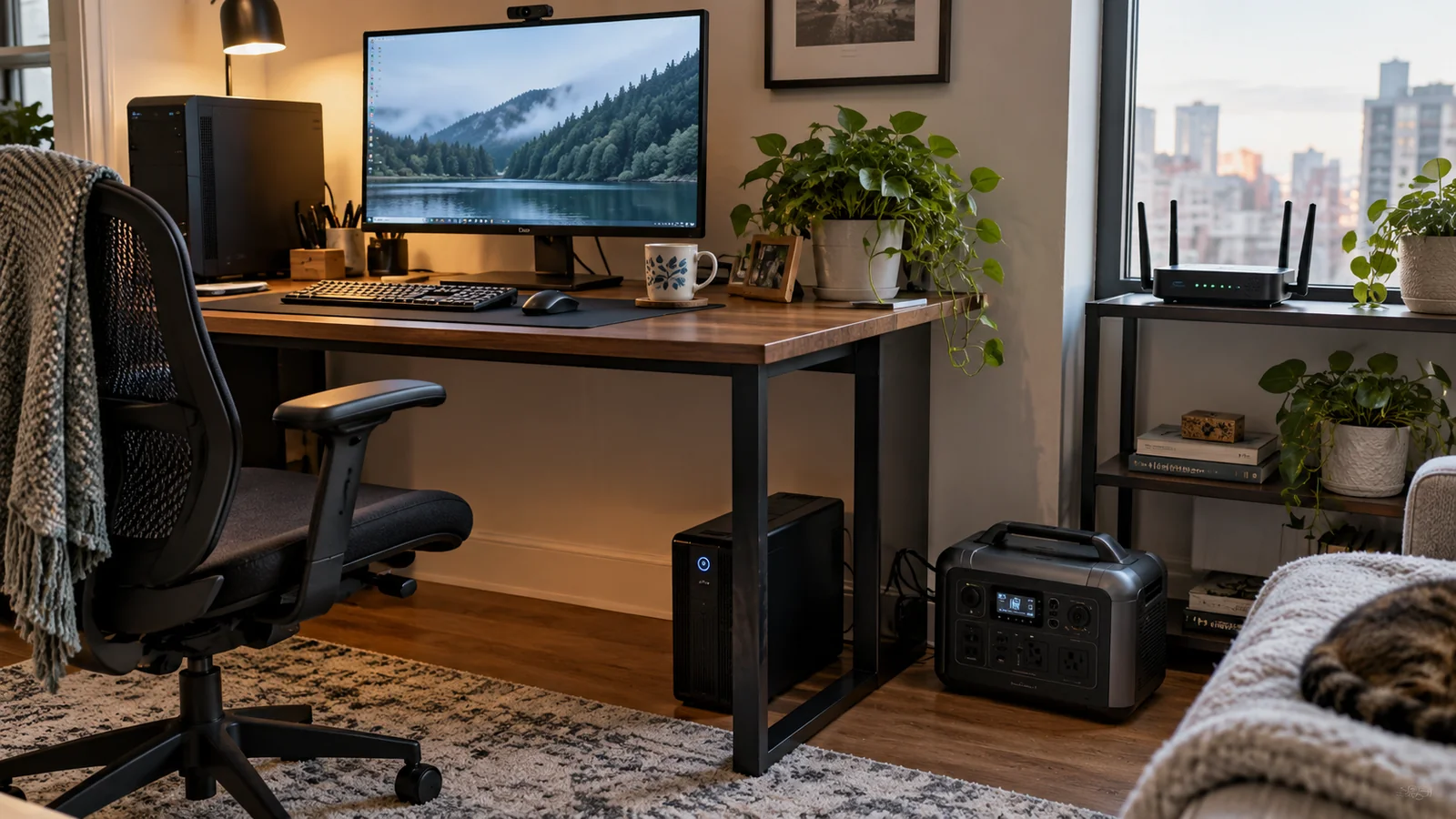
Before estimating a battery size, picture your whole desk: the computer, display, router and anything else that must stay powered. The illustrated setup below is a visual example, not a wiring diagram.
For example, a desktop PC equipped with a 750-watt power supply unit (PSU) rarely draws 750 watts from the wall during office productivity tasks. Under typical office conditions (web browsing, text editing, spreadsheet analysis, and video conferencing), a modern mid-range desktop PC typically consumes between 120 W and 160 W. However, during heavy computational tasks such as 3D rendering, video encoding, or gaming, that same system’s power draw can increase to 250 W or higher US DOE Computer Energy Management Guide.
How to Measure Your Workstation Consumption
- Plug-in Electricity Monitor: Insert an inline watt meter (such as a Kill A Watt or smart plug monitor) between your wall outlet and your workstation power strip. Measure and record three specific baseline numbers:
- Idle Draw: Workstation powered on, operating system loaded, background apps open, idle screen active.
- Average Productivity Draw: Active work state with multiple browser tabs, document software, and an active video call.
- Peak Workload Draw: Heavy multi-core CPU processing, file compression, or graphics rendering.
- Editorial Baseline Planning Estimates: When a physical meter is unavailable, use standard representative baseline estimates for home office planning APC UPS Selector:
- Laptop (14″–16″ Office Model): 10 W to 15 W idle / light work; 25 W to 45 W active charging. (Note: U.S. Department of Energy guidelines provide federal procurement standards and annual energy management targets rather than real-time meter readings for specific consumer desktop builds US DOE Computer Energy Management Guide).
- 27-inch LED External Display: 20 W to 35 W depending on brightness setting.
- Wi-Fi 6 Router + Fiber ONT / Cable Modem: 12 W to 22 W combined draw.
- Mid-Range Desktop PC: 120 W to 160 W office productivity; 220 W to 280 W peak load.
- High-Performance Workstation / Gaming PC: 200 W to 350 W office productivity; 450 W to 600 W+ peak rendering.
3. Choose the Right Backup Hardware: UPS vs. Portable Power Station
Evaluating battery backup hardware requires understanding the distinction between Apparent Power (VA) and Real Power (Watts) Eaton Desktop UPS Buying Guide.
- Apparent Power (VA) = Total Volt-Amperes capacity rating (V x A).
- Real Output Power (Watts) = Maximum continuous active power capacity rated by vendor.
- Manufacturer example: CyberPower CP1500PFCLCD = 1500 VA / 1000 W Manufacturer Rating.
- Rule: Connected load must not exceed rated Output Watts or rated VA limit.
Every UPS hardware model specifies two distinct maximum ratings from the manufacturer: Apparent Power in Volt-Amperes (VA) and Real Output Power in Watts (W). For example, the CyberPower CP1500PFCLCD is rated at 1500 VA and 1000 W CyberPower CP1500PFCLCD Specification. You must ensure that your total connected load does not exceed either the rated watt limit or the rated VA limit of the UPS. Allow headroom for load uncertainty and transient demands. Eaton recommends selecting a UPS with a VA rating approximately 20% above the estimated equipment power requirements; verify the VA and watt limits separately, using the manufacturer’s sizing guidance Eaton Desktop UPS Buying Guide.
Selection Criteria Matrix
| Selection Criteria | Standby UPS | Line-Interactive UPS | Portable Power Station |
|---|---|---|---|
| Primary Design Intent | Short bridging & graceful shutdown | Active line regulation & fast bridging | Extended multi-hour battery power |
| Typical Transfer Delay | 6 to 10 ms | 2 to 8 ms | 10 to 20 ms (EPS / UPS modes; model-dependent) |
| Voltage Regulation | None (switches to battery on sags) | Automatic Voltage Regulation (AVR) | N/A (Runs off internal inverter) |
| AC Output Waveform | Simulated / Stepped Sine Wave | Pure Sine Wave (on specified models) | Pure Sine Wave |
| Runtime at 160 W Load | Use exact model runtime curve | Use exact model runtime curve | Calculate from nominal/usable Wh, efficiency, and idle draw; verify on exact model |
| Internal Battery Type | Sealed Lead-Acid (VRLA) | Sealed Lead-Acid (VRLA) or LiFePO4 | LiFePO4 (Lithium Iron Phosphate) |
| Expected Service Life | 3 to 5 years (battery replacement) | 3 to 5 years (VRLA battery replacement) | 3,000+ cycles to 80% capacity |
| Operating Noise | Silent during utility bypass | Quiet (fan engages during AVR/battery) | Active cooling fan under load |
Power Supply Waveforms and Active PFC Compatibility
Modern high-efficiency desktop power supplies feature Active Power Factor Correction (Active PFC). When powered by battery backup, Active PFC power supplies operate most reliably with a Pure Sine Wave AC waveform. Connecting an Active PFC power supply to a low-cost UPS that outputs a stepped or simulated sine wave can trigger protective shutdown behavior in the PC power supply or produce high-frequency audible transformer hum CyberPower CP1500PFCLCD Specification.
Selecting a Pure Sine Wave UPS unit is strongly recommended for modern desktop workstations. The primary verified 1000 W pure sine wave model example referenced in this guide is the CyberPower CP1500PFCLCD (1500 VA / 1000 W, Pure Sine Wave) CyberPower CP1500PFCLCD Specification. An alternative pure sine wave model family is the APC Back-UPS Pro BR1500MS2 (1500 VA / 900 W, Pure Sine Wave) APC BR1500MS2 Datasheet. (Note: Verify the exact SKU rating for your region; APC’s BR1500MS2 is rated at 900 W output, whereas the BR1500M2 uses a 900 W stepped approximation / simulated sine wave output, and the older BR1500MS is discontinued).
Regional Plug and Voltage Requirements
- North America (120 V / 60 Hz): Standard NEMA 5-15P input plug and NEMA 5-15R output receptacles.
- UK / Europe / Australia / NZ (230 V / 50 Hz): Type G (BS 1363), Schuko (Type F), or IEC C13/C14 connectors matching local utility voltage and frequency specifications. Always verify that replacement hardware matches your local grid standards.
4. Three Practical Home-Office Setups
Start with whichever setup resembles yours: laptop only, laptop with external equipment, or desktop workstation. Read the quick takeaway first; the example numbers are illustrative planning assumptions, not measurements of a particular home.
Scenario A: Laptop-Only Workstation
At a glance: No AC UPS is required. An external USB-C PD power bank provides compact, highly efficient backup.
- Hardware: 14-inch or 16-inch laptop.
- Illustrative Planning Consumption: 12 W light productivity / 30 W active loading.
- Backup Strategy:
- Primary Source: Internal 70 Wh lithium laptop battery provides approximately 2.3 hours of runtime under a continuous 30 W active load (70 Wh / 30 W = 2.33 h), or up to 5.8 hours under light 12 W office editing. A 4.5-to-5.5-hour result is one illustrative, lower-than-ideal planning scenario; actual runtime depends on the laptop battery condition, screen brightness, workload, and power settings and should not be treated as a measured test.
- Secondary Source: A 20,000 mAh (74 Wh at 3.7 V) USB-C Power Delivery (PD) power bank rated at 65 W output provides an additional 62.9 Wh of delivered DC energy (assuming ~85% DC-to-DC conversion efficiency), adding approximately 2.1 hours of active work at 30 W or 5.2 hours at 12 W.
Scenario B: Laptop + 27″ External Display + Router/ONT (40 W External AC Load)
At a glance: Separating DC laptop charging from external AC peripheral backup maximizes battery efficiency.
- Hardware: Laptop (powered separately by internal battery / USB-C charger), 27″ LED Display (25 W), Wi-Fi 6 Router & Fiber ONT (15 W).
- Illustrative External AC Load: 40 W continuous AC draw (powering external display and network equipment).
- Backup Strategy:
- Laptop operates on its internal battery and secondary USB-C power bank separately from the external AC peripheral budget.
- Option 1 (Short Bridging): A compact Standby UPS keeps the display and router powered during short sags; readers must consult the manufacturer’s published load-versus-runtime table for expected bridging minutes at 40 W.
- Option 2 (Extended Work Continuity): A compact 300 Wh portable power station provides ~5.0 hours of continuous AC power for the 40 W external AC load under the component-level parameter model (300 Wh nominal x 0.95 DoD / [(40 W / 0.88 inverter eff) + 12 W idle] = 4.96 h). (Note: Real-world low-load runtime depends on the power station’s actual inverter efficiency at 40 W, internal idle overhead, and auto-off timeout settings).
Scenario C: Desktop PC + 27″ Display + Router/ONT (160 W Average Desktop Load)
At a glance: Use a dedicated UPS for immediate bridging and clean shutdown. For extended operation, perform a manual changeover to a ~1000 Wh to 1280 Wh class power station or use a pre-connected station that explicitly specifies sub-10 ms computer switchover.
- Hardware: Mid-range Desktop PC Tower (120 W avg / 220 W peak), 27″ LED Display (25 W), Wi-Fi Router + Fiber ONT (15 W).
- Illustrative Workstation Load: 160 W average continuous productivity load / 260 W peak workload.
- Backup Strategy:
- Primary Protection (Bridging & Shutdown): A Line-Interactive 1500 VA Pure Sine Wave UPS (e.g., CyberPower CP1500PFCLCD [1000 W] or APC BR1500MS2 [900 W]) provides rapid switchover and AVR line regulation CyberPower CP1500PFCLCD Specification. CyberPower’s published specifications establish 10 minutes at half load (500 W) and 2.5 minutes at full load (1000 W). For lighter loads such as 160 W, readers must consult the manufacturer’s published load-versus-runtime curve for their specific SKU to verify expected bridging minutes.
- Extended Work Continuity & Aged-Battery Reserve Math: To power a 160 W desktop workstation for 4 hours, the system requires 640 Wh of delivered AC energy (160 W x 4 h = 640 Wh).
See the desktop battery sizing calculations (optional)
- Fresh-Battery Sizing: Under an aggregate 80% delivered AC efficiency assumption, theoretical minimum nominal capacity is 800 Wh (640 Wh / 0.80 = 800 Wh). Under the explicit component parameter model (0.95 DoD, 0.88 inverter efficiency, 12 W battery-side idle draw), continuous DC draw is 193.8 W (160 / 0.88 + 12 = 193.82 W), requiring 775.3 Wh of DC battery energy over 4 hours, or a nominal capacity of 816.1 Wh fresh (775.3 Wh / 0.95 = 816.1 Wh). A fresh 800 Wh station provides 3.92 hours of runtime (0% reserve margin). A fresh 1,000 Wh station provides 4.90 hours of runtime (~22.5% headroom when new).
- Aged-Battery (80% State of Health) Sizing: At 80% SoH (20% capacity degradation due to cell ageing over time), a 1,000 Wh station has an effective nominal capacity of 800 Wh, yielding 3.92 hours (dropping slightly below 4 hours). To achieve 4.0 hours at 80% SoH with zero additional reserve, the mathematical nominal capacity required is 1,020.1 Wh (minimum ~1,024 Wh LiFePO4 station). To achieve 4.0 hours plus a 20% unused reserve margin at 80% SoH, the mathematical nominal capacity required is 1,275.1 Wh (nominal ~1,275 Wh station, e.g. 1280 Wh LiFePO4 station yielding ~5.0 hours at 80% SoH).
- Recommendation: Select a station in the ~1000 Wh to 1280 Wh class depending on desired battery ageing lifespan and reserve margins.
5. How Long Will It Run? (Optional Calculations)
Estimating battery backup duration requires accounting for energy conversion losses, internal inverter overhead, and battery discharge characteristics Schneider Electric UPS Buying Guide.
In plain language: A battery’s watt-hour rating is not the same as the energy you can use at your devices. Inverter losses and internal power consumption reduce runtime, especially at light loads. Use a manufacturer’s load-versus-runtime information when available; the worked examples below are for readers who want to see the assumptions behind the estimates. Portable power-station shortcuts should not replace the model-specific runtime curve for a lead-acid UPS.
See the runtime calculations and example table (optional)
Approach A (Delivered AC Energy Model):
Estimated Hours = (Nominal Capacity Wh x Delivered AC Fraction) / Load Watts
Example: (600 Wh x 0.80) / 160 W = 480 Wh / 160 W = 3.0 Hours
Approach B (Explicit Component Model):
Estimated Hours = (Nominal Wh x DoD) / ((Load Watts / Inverter Eff) + Idle Watts)
Example: (600 Wh x 0.95) / ((160 W / 0.88) + 12 W) = 570 Wh / 193.82 W = 2.94 Hrs
Two Energy Accounting Methods
When evaluating portable power station runtimes, maintain a clear energy boundary to avoid double-discounting conversion losses:
- Delivered AC Energy Fraction (Aggregate Model): An assumed 0.80 delivered-AC fraction may be used as a planning shortcut at a specified mid-range load, if it includes battery reserve, conversion loss, and internal consumption. It is not a universal measured efficiency.
Delivered AC energy (Wh) = nominal battery energy (Wh) × assumed delivered-AC fractionEstimated runtime (h) = delivered AC energy (Wh) ÷ measured AC load (W)
When the delivered-AC fraction already covers conversion and idle losses for this load condition, do not subtract those losses again. - Explicit Parameter Model (Component-Level Derivation): Keep nominal capacity, usable battery fraction, inverter conversion efficiency, and battery-side inverter idle power distinct.
Runtime (h) = [nominal energy (Wh) × DoD] ÷ [(AC load (W) ÷ inverter efficiency) + battery-side inverter idle (W)]
Illustrative inputs for a 600 Wh nominal power station are: DoD = 0.95, inverter efficiency = 0.88, and battery-side inverter idle = 12 W. These are assumptions, not laboratory measurements of a named model.
Inverter Idle Overhead Sensitivity Check
Fixed inverter idle power is consumed for as long as the AC output remains enabled. Under the preceding 600 Wh assumptions, 570 Wh of DC battery energy is usable. The table below shows what changes when the AC load changes:
| Continuous AC load | Effective battery draw | Estimated runtime | Delivered-energy fraction |
|---|---|---|---|
| 15 W (Router / ONT) | 15 / 0.88 + 12 = 29.05 W | 19.6 hours | 49.1% |
| 40 W (Display + network) | 40 / 0.88 + 12 = 57.45 W | 9.9 hours | 66.1% |
| 50 W (Laptop + display) | 50 / 0.88 + 12 = 68.82 W | 8.3 hours | 69.0% |
| 160 W (Desktop workstation) | 160 / 0.88 + 12 = 193.82 W | 2.94 hours | 78.4% |
| 250 W (Heavy workstation) | 250 / 0.88 + 12 = 296.09 W | 1.93 hours | 80.2% |
These are illustrative constant-load outputs for the stated model; the 0.80 aggregate shortcut is less suitable at low loads because of the time-dependent 12 W idle term.
Traditional Lead-Acid UPS Discharge Characteristics
Traditional Sealed Lead-Acid (VRLA) batteries used in standard desktop UPS units exhibit non-linear discharge behavior governed by Peukert’s Law. High discharge currents significantly reduce usable battery capacity. Doubling the connected load reduces VRLA runtime by more than 50%. Always consult the manufacturer’s published load-versus-runtime curve for a specific UPS model SKU rather than attempting linear watt-hour calculations Eaton Desktop UPS Buying Guide.
6. Switchover Speeds and Computer Hold-Up Sensitivity
When grid utility power drops, a desktop computer’s power supply relies on internal high-voltage capacitors to maintain stable DC output voltage while the backup power source detects the failure and energizes its inverter. This duration is known as the PSU hold-up time.
Published Intel PSU design guides use different hold-up requirements by design and revision—for example, 12 ms in an ATX12VO guide and 17 ms in an ATX 3.0 guide under their stated test conditions. Neither value guarantees that an individual desktop will tolerate a particular backup transfer interval. See Intel ATX12VO design guidance and Intel ATX 3.0 design guidance.
Grid Power Loss → PC hold-up time varies by PSU model and load.
- Line-Interactive UPS: 2 to 8 ms — Often suitable; verify exact system.
- Sub-10 ms UPS Mode Station: ≤10 ms — Verify exact computer compatibility.
- Standard 20 ms EPS Station: 15 to 20 ms — Risk: PC May Reset or Power Off.
- Line-Interactive UPS (2 to 8 ms transfer, illustrative): Generally offers rapid changeover, but compatibility depends on the exact UPS, computer power supply, and workload. A model-specific transfer rating alone does not guarantee zero interruption.
- Portable Power Station EPS vs. UPS Modes: Portable power station models vary significantly in transfer design. For example, official product documentation for the standard EcoFlow RIVER 3 specifies an Emergency Power Supply (EPS) transfer speed within 20 ms, and the manufacturer explicit user manual cautions against connecting desktops or NAS devices that require zero-interruption switchover EcoFlow RIVER 3 Manual. Conversely, the EcoFlow RIVER 3 Plus / 10 ms UPS variant specifies sub-10 ms transfer designed specifically for computer workstation compatibility EcoFlow RIVER 3 Plus Manual.
Never assume a portable power station marketed with “UPS capability” guarantees seamless hold-up for every desktop PC configuration. Performing a manual changeover (graceful shutdown on UPS -> replug to power station -> reboot) eliminates transfer timing risks entirely.
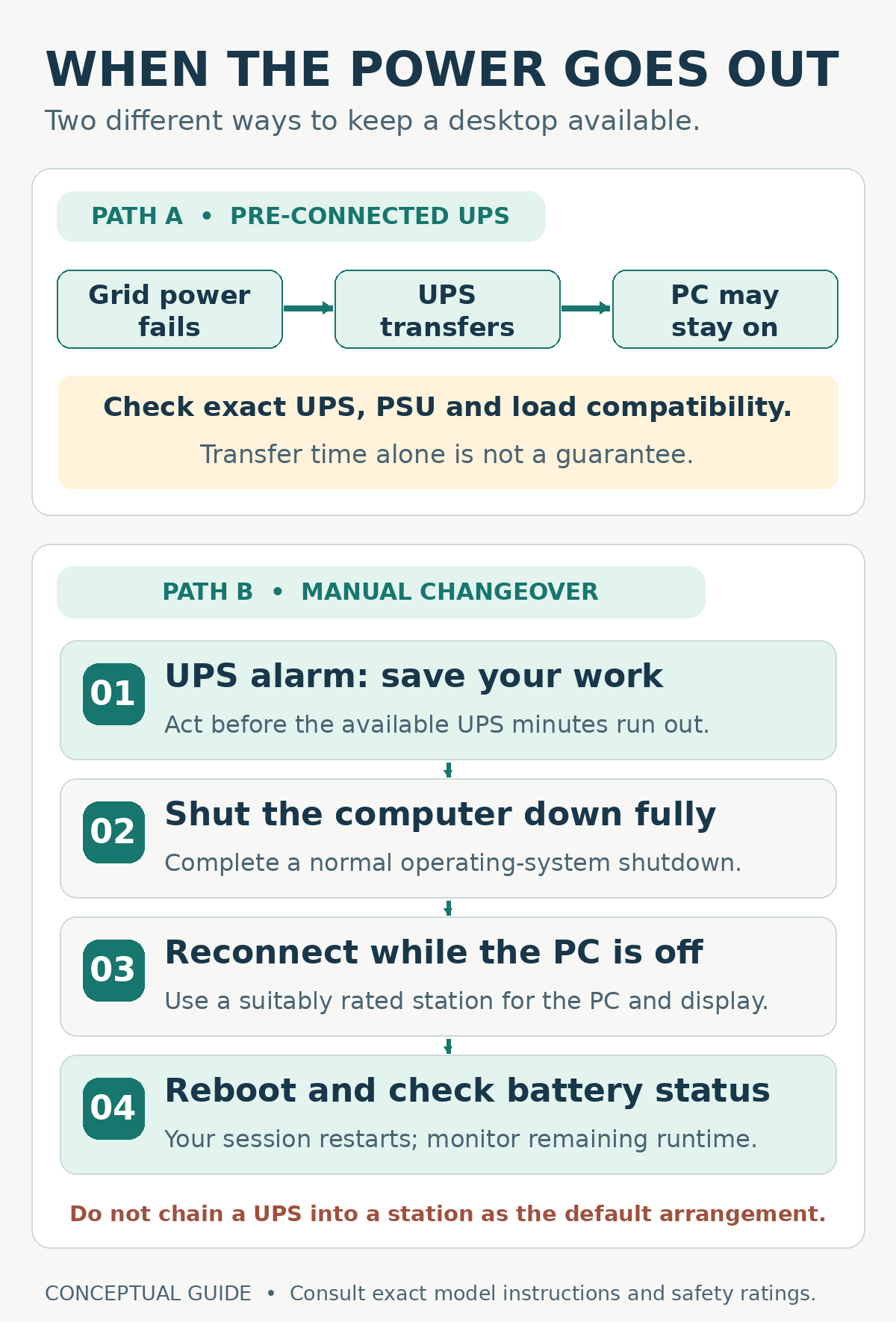
7. Action Sequence: “What to Do After the First Beep”
When your desktop UPS sounds its initial blackout alarm, follow this prioritized operational sequence:
- Immediately Save Active Work & Open Documents.
- Check UPS Status Display (Battery % & Estimated Minutes Remaining).
- Close Non-Essential Background Apps & Web Browsers.
- Optionally Silence Audible Alarm (If Supported).
- Perform Graceful OS Shutdown before battery depletion (or Execute Manual Changeover to Station after shutdown).
Automated USB Shutdown Software & Operating System Compatibility
Connecting the USB communication cable between your UPS and computer host enables automated shutdown protection when you are away from your desk. Operating system support varies by manufacturer and software edition:
- Windows & Linux: Schneider Electric offers PowerChute Serial Shutdown Schneider Electric PowerChute Guide. CyberPower provides PowerPanel Personal / Business, and Eaton provides PowerAlert System Control Eaton Desktop UPS Buying Guide.
- macOS Integration: Schneider’s PowerChute Serial Shutdown does not support macOS Schneider Electric PowerChute Guide. On macOS, Apple provides native USB HID power device management built directly into the operating system. For desktop Mac computers (Mac mini, Mac Studio, Mac Pro, iMac) connected to a supported UPS via USB, native power controls are accessed under Apple Menu > System Settings > Energy > UPS Options (or
Energy Saveron older macOS versions), allowing users to configure automated graceful shutdown triggers with adequate remaining time based on battery percentage or estimated remaining runtime Apple Mac Desktop UPS Guide. (For Mac laptops, native battery settings are managed under System Settings > Battery).
Important Equipment Connection and Chaining Warnings
- Laser Printer Restriction: Do not connect a laser printer to UPS battery-backed outlets. Some manufacturers also prohibit laser printers on their UPS surge-only outlets: Schneider/APC recommends keeping laser printers off both outlet groups on Back-UPS models, whereas CyberPower specifically warns against battery-backed outlets. Follow the exact UPS and printer manuals and use a suitably rated independent wall circuit or surge protection where permitted. Schneider/APC printer guidance · CyberPower printer guidance.
- Power Strip / Daisy-Chaining Warning: Avoid connecting ordinary power strips or additional surge protectors to UPS output receptacles unless the exact UPS manufacturer expressly permits the arrangement. Such connections may increase overload risk or conflict with model-specific instructions or equipment-protection terms. Use the UPS’s intended outlets and follow the manufacturer’s guidance. Eaton Surge Protection Explained · CyberPower UPS Surge-Strip FAQ.
- UPS-to-Power-Station Chaining Caution: Do not treat connecting a desktop UPS input plug into a portable power station AC receptacle as a standard default configuration. Major manufacturers (such as Schneider Electric / APC) explicitly advise against connecting their UPS hardware behind portable power stations due to floating neutral grounding configurations, modified sine wave interactions, and surge protection limitations Schneider Electric APC UPS FAQ. To achieve extended runtime safely, power the workstation directly from a power station rated for computer hold-up or execute a manual changeover.
8. Home-Office Selection Checklist
Before purchasing battery backup equipment for your home office, verify these essential selection criteria:
- [ ] Real Output Watt Capacity: Confirm that the rated continuous output watts cover the workstation’s peak demand with suitable headroom. Check the separate VA rating and manufacturer’s sizing guidance; VA and watts are not interchangeable.
- [ ] Pure Sine Wave Output: Confirm Pure Sine Wave output for Active PFC desktop computer power supplies.
- [ ] Transfer Time and Compatibility: Check the exact UPS/EPS transfer specification, particular computer power supply, connected load and manufacturer instructions. A sub-10 ms transfer rating alone does not establish uninterrupted operation.
- [ ] Outlet Layout & Spacing: Ensure transformer-spaced outlets accommodate bulky power adapter blocks.
- [ ] USB Communication Port & OS Support: Verify USB communication support and software compatibility for your specific operating system (Windows, macOS native, or Linux).
- [ ] User-Replaceable Battery: Check whether internal lead-acid batteries are standard user-replaceable modules Eaton Desktop UPS Buying Guide.
- [ ] Audible Noise Level: Confirm dBA fan noise specifications for quiet residential work environments.
9. Frequently Asked Questions (FAQ)
Can a desktop UPS run my computer for hours during a blackout?
Standard consumer desktop UPS units are designed for short-term emergency bridging (typically 5 to 20 minutes) to allow time to save files and shut down gracefully. For multi-hour desktop work, use a suitably sized power station compatible with the particular computer and load, or shut down safely on UPS battery power before reconnecting the workstation to a suitably rated station and rebooting. A manufacturer’s sub-10 ms transfer rating alone does not guarantee uninterrupted operation Schneider Electric UPS Buying Guide.
Is a USB-C power bank sufficient for a laptop?
Yes. Modern laptops that charge via USB-C Power Delivery (PD) can run for hours off a high-capacity (20,000+ mAh / 74 Wh) power bank rated at 65 W output or higher, avoiding the energy losses of AC inverters US DOE Computer Energy Management Guide.
Does powering my router guarantee internet access during a blackout?
No. Powering your local router and optical network terminal (ONT) keeps your home local area network active, but internet access depends on whether your Internet Service Provider’s upstream neighborhood equipment retains backup power Home Internet Backup Guide (A02).
What is the difference between a surge protector and a battery backup?
A surge protector suppresses temporary voltage spikes but provides zero backup power during a blackout. A UPS combines surge suppression with an internal battery to provide uninterrupted power when utility electricity fails Eaton Surge Protection Explained.